Operators on a busy packaging line rarely touch a screen with a clean, deliberate fingertip. A palm braces against the bezel while the other hand reaches for a carton, a wrist drags across the glass during a rushed menu change, and the line suddenly stops on a page nobody meant to open. False touches of this kind are a daily nuisance wherever an industrial capacitive touch screen sits within arm’s reach of fast manual work. The engineering answer is not a less sensitive sensor but a smarter chain of discrimination, where sensor physics, controller firmware, mounting geometry, and commissioning tests each share the work of separating intentional input from incidental contact.
Distinguishing Palm Contact From Finger Taps on an Industrial Capacitive Touch Screen
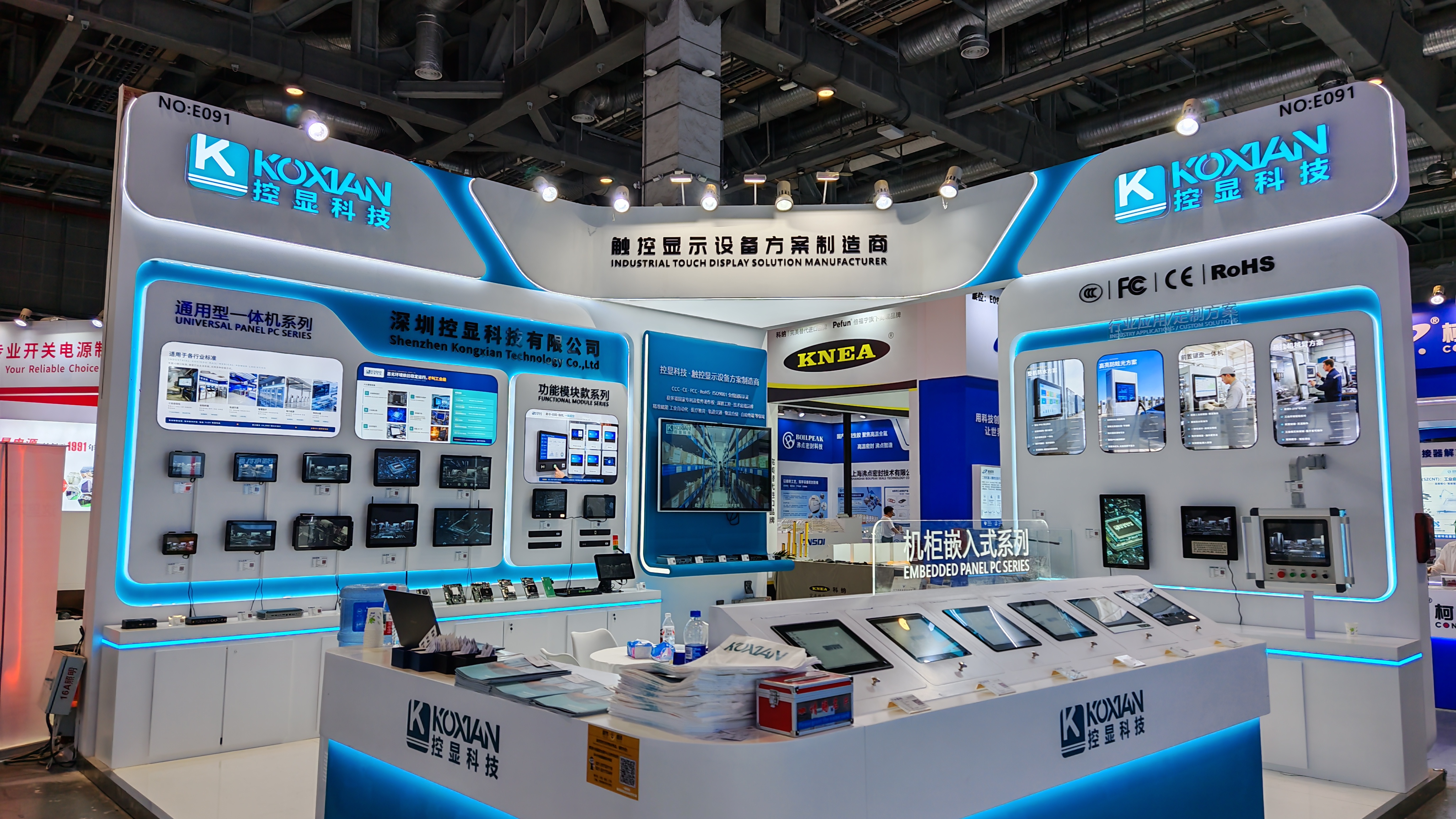
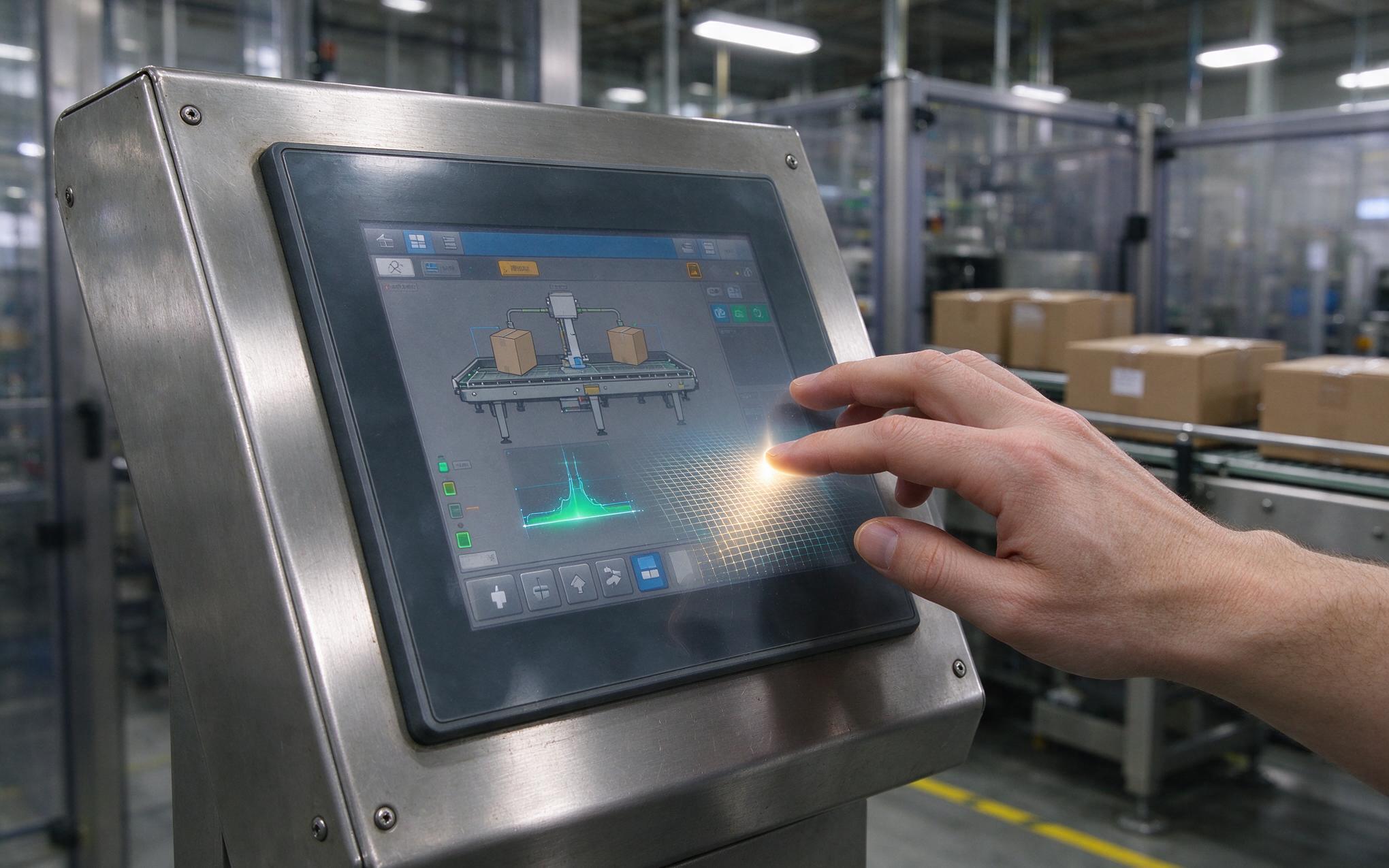
Field observations from parcel sortation cells show that terminals built on KOXIAN industrial panel hardware register few ghost taps once palm handling is configured, even when operators lean a hand against the bezel. The physics behind that result starts at the sensor itself. A fingertip couples charge onto a tight cluster of electrode intersections, producing a small tall peak in the capacitance map. A resting palm spreads the same effect across dozens of nodes as a broad, shallow region with low curvature. Because the raw measurement already differs so strongly, the controller gains a reliable basis for telling the two apart before higher level logic runs. Edge position adds a further clue, since palms usually arrive from the bezel side while deliberate taps land inside the active area.
How Controller Firmware Classifies Touch Blobs
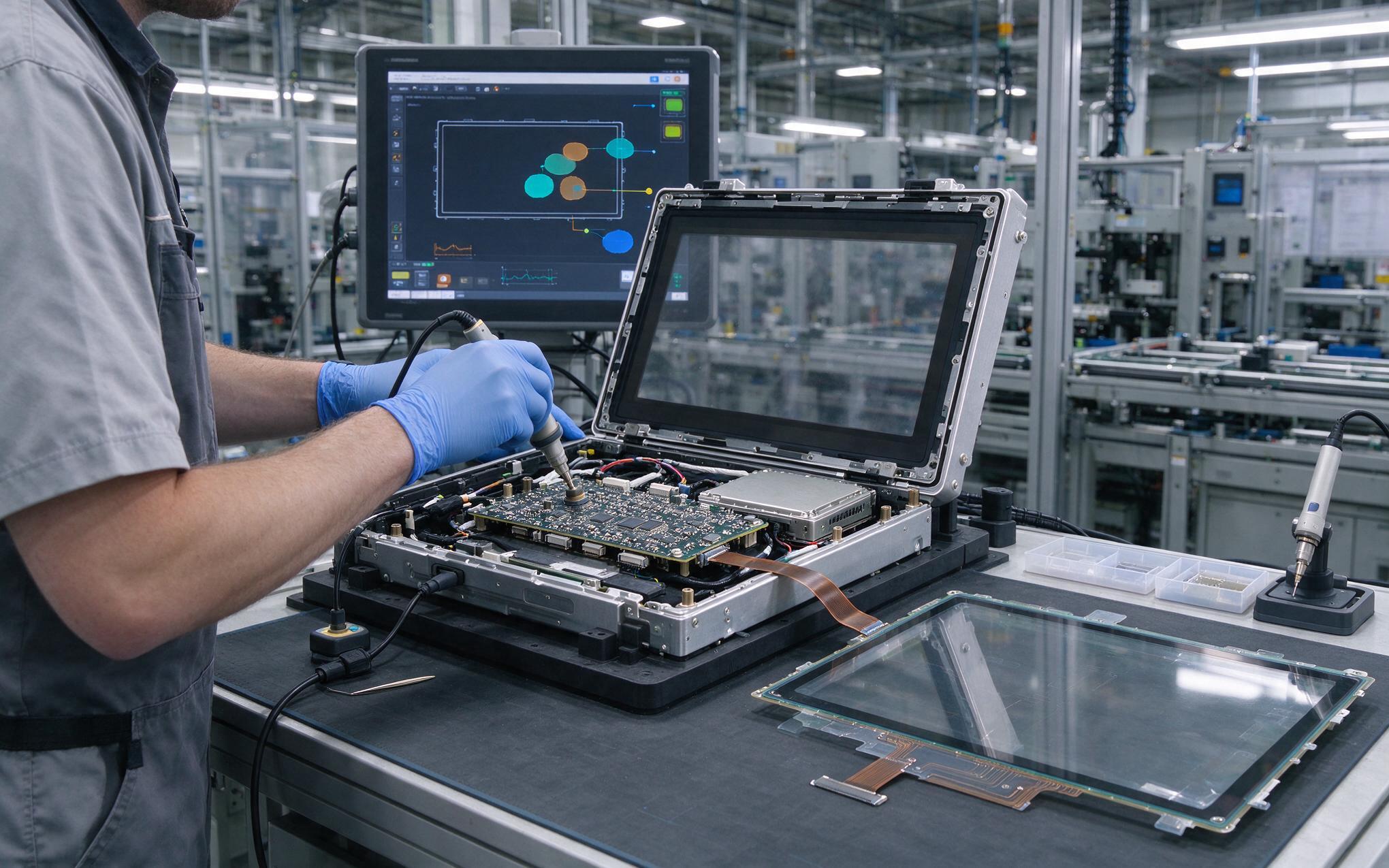
Touch controllers inside an industrial capacitive touch screen cluster active nodes into blobs and grade each blob before reporting it. Area, aspect ratio, perimeter smoothness, dwell time, and centroid motion all feed the decision. A finger tap appears as a compact blob that forms quickly, moves with intent, and lifts within a fraction of a second, while a palm lingers as a large, slow, low contrast region. Palm rejection logic refuses to report blobs that fail finger-like tests, so the resting hand never becomes a cursor event. Multi-frequency scanning adds robustness: driving the sensor at several frequencies separates genuine contact from electrical interference that would otherwise blur classification. Engineers integrating an industrial touch display should confirm these filters are active, since some controllers ship with defaults that report every contact.
Mounting Angle and Operator Posture Effects
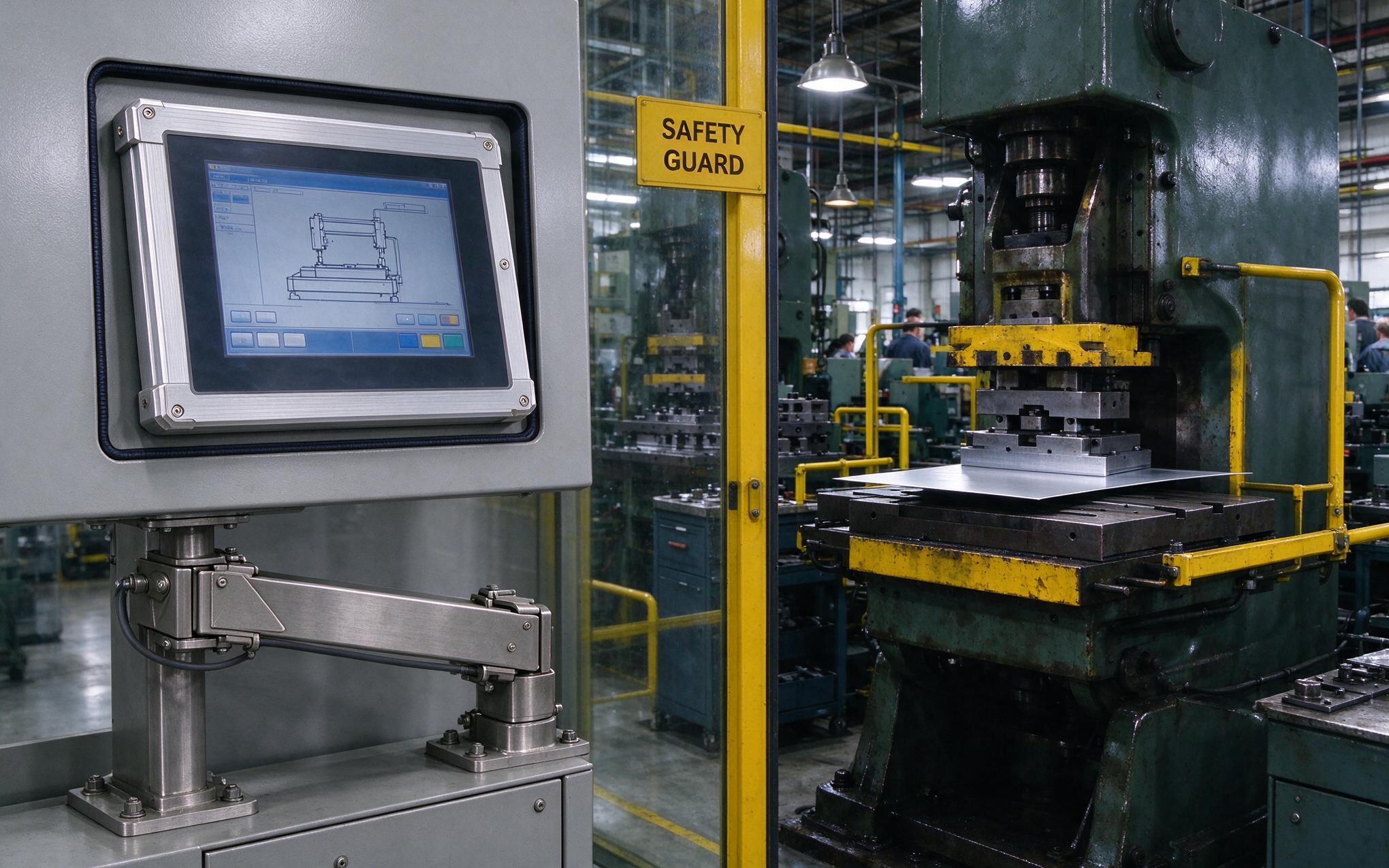
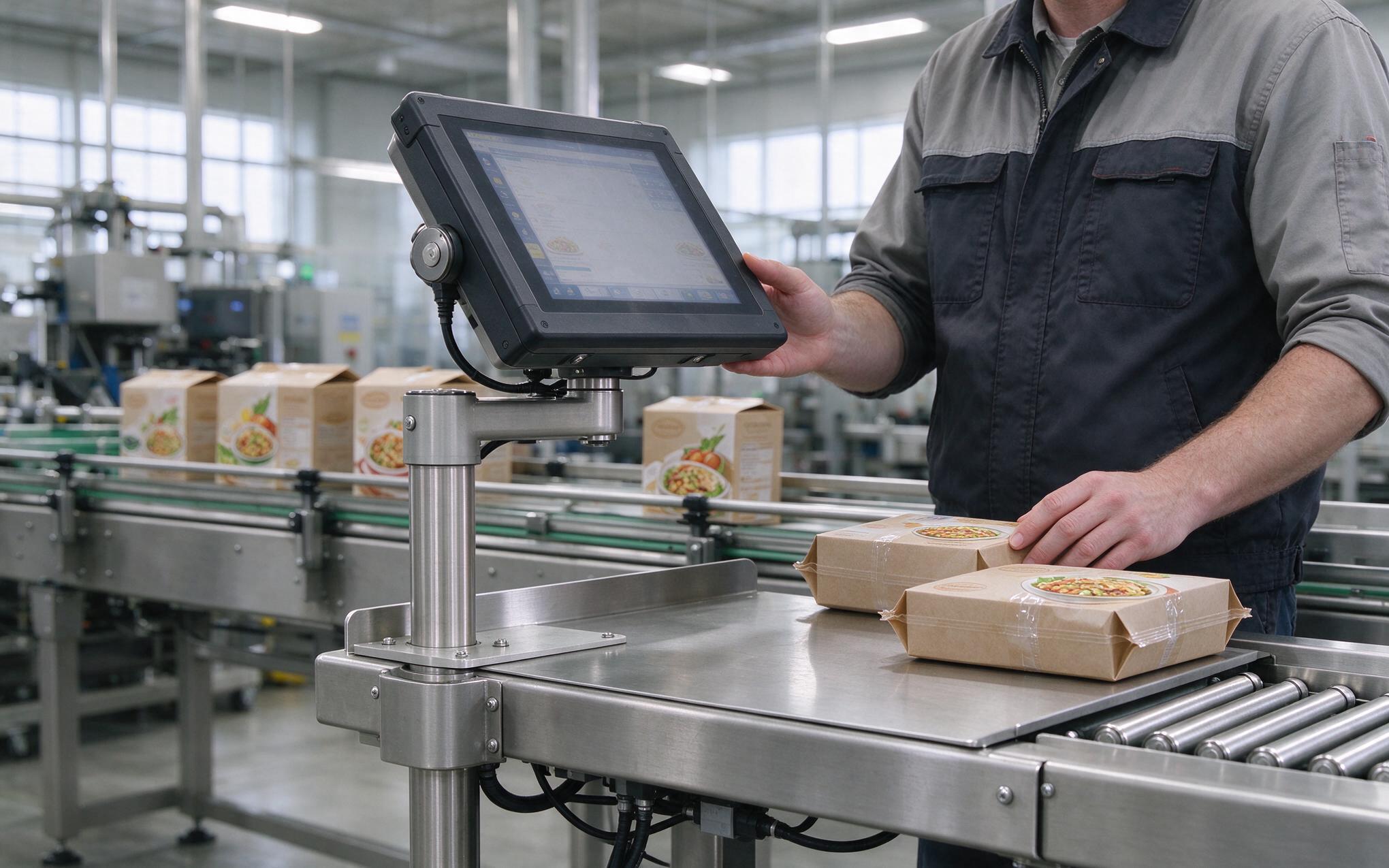
Geometry outside the glass matters as much as firmware inside it. An industrial capacitive touch screen mounted flat on a packing table invites forearms and palms to rest on its surface, while the same unit tilted thirty degrees sees mostly fingertip traffic. Bezel design plays a quiet role as well: a wide, stable bezel gives the heel of a hand somewhere to land outside the active area, whereas a flush narrow border channels palm contact straight onto live nodes. Workstation height changes the statistics too, because a screen set below elbow level encourages leaning. Integrators planning an industrial touch screen layout should treat mounting posture as a tuning input, since no firmware filter fully compensates for a surface that invites leaning.
Validation Tests for Line-Side Commissioning
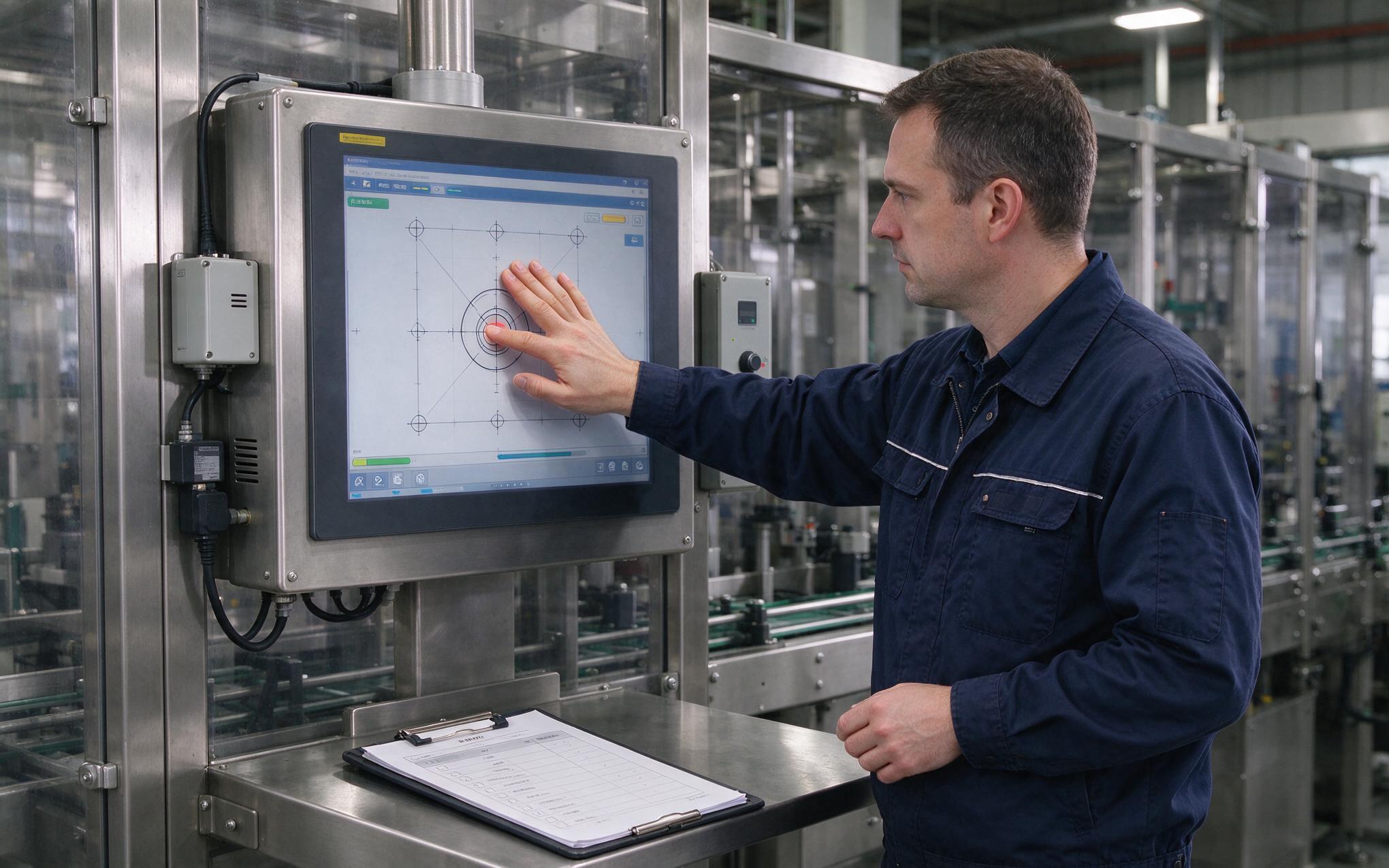
Acceptance testing should reproduce the abuse the line will actually deliver. Four short scripts cover most risk: a palm rested at each bezel edge for ten seconds, a simultaneous palm plus fingertip tap, a slow wrist drag across the full active area, and a sustained two finger hold near the corners. Hardware manufacturers, including KOXIAN, run comparable resting palm and gloved swipe sequences against production firmware before shipment, and repeating them on site takes well under an hour. Results belong in the commissioning log alongside firmware versions, because an update can silently reset rejection thresholds to factory defaults. Sites that retest after every firmware change catch regressions before operators do, and the screen stays trustworthy through years of shift work.
Reliable touch input on a factory floor is never the product of one component. Sensor geometry gives the controller a distinguishable signal, firmware filters decide what deserves to become a tap, mounting posture shapes how hands actually arrive, and commissioning tests prove the whole chain under real abuse. When those four layers line up, an industrial capacitive touch screen accepts every deliberate fingertip and quietly ignores the palms, wrists, and sleeves that share its workspace, which is exactly the behavior a busy line needs.